When we first took a look at NVIDIA’s 3D Vision technology a couple of years ago, we came away impressed. We understand that gaming and watching video in 3D isn’t for everyone, but after using NVIDIA’s first 3D Vision kit with one of Samsung’s then-new 120Hz LCD displays, we truly enjoyed the experience. Not only was a new dimension (literally and figuratively) added to the games we played, but there were inherent advantages to using a 120Hz LCD, both when 2D gaming and just working on the desktop. There was no denying NVIDIA had an uphill battle convincing gamers to put on a pair of beefy, active-shutter glasses, and spring for a new monitor, but for those that took the plunge, there were definite benefits.
Since its initial introduction, NVIDIA has put significant effort in to continually improve its 3D Vision technology and ecosystem. Almost 600 games—both old and new—are now supported, the price has come down significantly on the glasses, tons of 3D content is now available on 3DVisionLive.com and YouTube, and a number of partners have released 3D Vision capable monitors, like Asus, Planar, Acer, Viewsonic, LG and of course Samsung. There are also some monitors and notebooks now available that feature integrated 3D Vision IR emitters (and bundled glasses), so users don’t have to have to use an external USB emitter at all. We actually took a look at a couple of 3D Vision ready monitors not too long ago if you’d like to see some examples.


If you are not familiar with NVIDIA’s 3D Vision technology, take a look at our initial launch coverage for the complete low-down, because we’re not going to cover everything again in this piece. Our launch articles explains how the technology works, how to install and use it, and features a few example videos of 3D Vision in action—although the videos cannot and do not do the technology justice. To quickly reiterate some of what is covered in the launch article, 3D Vision basically takes a pair of high-quality active-shutter glasses, and couples them with a USB IR transmitter, which keeps the shutters in-sync with the 3D content being displayed on a compatible screen, using NVIDIA’s proprietary software / drivers. Since launch, the base technology hasn’t changed much, but NVIDIA has learned much from the initial batch of products and is ready to unveil its newest iteration, 3D Vision 2.
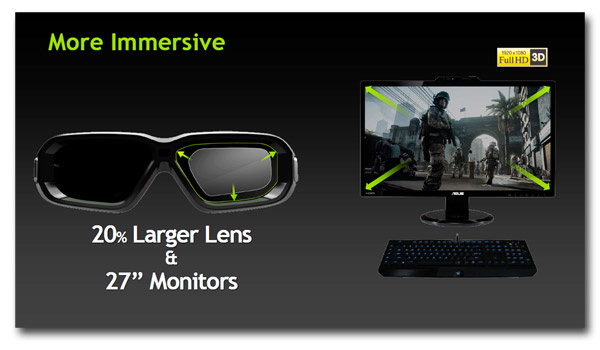
On many levels, 3D Vision 2 is very similar to 3D Vision. The technology works in exactly the same way. It uses the same software, and the new glasses we’ll be showing you later are backwards compatible with the original emitters. Conversely, the original 3D Vision glasses are forward compatible with newer 3D Vision 2 kits. But NVIDIA has made a number of physical and technical tweaks that enhance the technology in a few key ways. NVIDIA has redesigned its active-shutter glasses and incorporated 20% larger lenses and worked with ecosystem partners to bring new, larger, full-HD 3D Vision compatible monitors to market. They’ve also developed a new technology dubbed LightBoost that ultimately results in brighter on-screen imagery and better environmental lighting characteristics as well.
We’ll talk more about the new 3D Vision 2 glasses and a new Asus VG278H monitor that works with the technology a bit later. For now, let’s talk LightBoost for a bit.
One of the complaints from users using virtually any active-shutter 3D technology is that on-screen images appear darker than they normally would when viewed in standard 2D mode. The darkening of on-screen images is an unfortunate side-effect of the glasses alternatively blocking light to each eye in rapid succession. Lightboost combats this issue in a couple of ways.
Lightboost is enabled by the LED backlighting in the display. Lightboost pulses the backlight at double brightness when in 3D mode, to brighten on-screen 3D images. 3D LightBoost increases the power of the LED backlight in the monitor to pulse twice as brightly in unison with the LCD lenses in the 3D Vision glasses. This simply wasn’t possible with older 3D monitors and laptops that featured CCFL lamps, because they can’t pulse or switch on and off fast enough, with consistent brightness.
Another advantage to Lightboost has to do with how the active-shutter glasses and screen are synched. With older monitors that feature CCFL lamps that are on all the time, both lenses in the original 3D Vision glasses were forced into a dark phase, where both lenses were blacked-out, while the image shifted from the left to right eye, and vice versa. Since the LED backlights can switch on and off so quickly in-between frames with Lightboost capable monitors, refreshing at 120 times per second (120Hz) with a 2ms response time, the 3D Vision 2 glasses can ultimately let more light through because they don’t have to enter this double-black phase.
The end result is that more ambient light gets through to your eyes, so you can see things in the environment, like your keyboard or mouse for example, much better.
NVIDIA’s new 3D Vision 2 glasses share some similarities with the originals in terms of their lense shape overall look, but a number of aspects have been tweaked for better performance and comfort.

As we mentioned on the previous page, the lenses used in the 3D Vision 2 glasses are 20% larger, to allow for wider viewing angles. The shape of the glasses has also been changed slightly to better wrap around the wearer’s head and there is a ridge along the inside-top end that helps block more light, for better immersion.

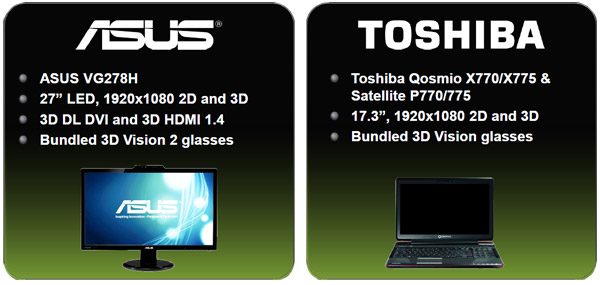
In addition to the new 3D Vision 2 glasses, NVIDIA has also worked with its partners to help bring Lightboost enabled notebooks and monitors to market. Toshiba has a couple of notebooks already in the works, and although we don’t have confirmation just yet, others are likely to follow suit. Asus is also at the ready with a 27” Lightboost enabled LCD—the VG278H—which we were able to test out with a pair of the new 3D Vision 2 glasses.

For a 27” LCD, the Asus VG278H sports a relatively thin bezel; it’s not tiny by any means, but there is only about .75” of bezel that wraps the top and sides of the screen and about 1” along the bottom edge. Centered along the top, there is an angular protrusion that extends upwards about another .5” that houses the built-in IR emitter. Said protrusion is adjustable so users can set the perfect angle for a good line-of-sight shot at the 3D Vision 2 glasses and it features a small, silkscreened tagline that reads, “Ready for 3D games and videos”.


The Asus VG278H features height and swivel adjustment, a built-in cable guide, and a heavy round-base that is emblazoned with a “3D” logo. The entire enclosure, with the exception of a small area on the IR emitter is a flat black and the screen has an excellent anti-glare, matte finish. The overall look of the screen is somewhat subdued and really nice, in our opinion.
 Others features and specifications of the Asus VG278H include:
Display size: 27″, 16:9 Widescreen, LED backlight
Panel Technology: TN (Twisted Nematic)
Resolution: 1920×1080 @ 120Hz
Contrast ratio: 1000:1 / 50,000,000:1 (Dynamic)
Brightness: 400 cd/m2
Response Time: 2ms (gray-to-gray)
Internal speakers: 3W x2 Stereo
Connections: HDMI, DVI-D (Dual-Link), D-Sub, HDMI 1.4, Earphone Jack
In terms of its specifications, there isn’t much that jumps out as extraordinary. The Asus VG278H has a 27” panel with a native resolution of 1920x1080 and a120Hz refresh rate. Brightness is rated for 400 cd/m2, which is above average, and its grey-to-grey response time is a snappy 2ms. Inputs include HDMI 1.4, DVI-D (Dual-Link), D-Sub, 3.5mm audio in and an earphone jack. We should also point out that the monitor has built in speakers and can play audio from both the analog and HDMI inputs. That means users can connect a device like a Blu-Ray player or console, and have audio. And surprisingly, the speakers aren't half bad. Highs and midranges are crisp and clear, but bass levels leave something to be desired. What the specs don’t convey is the uniformity of the backlighting, but we’ll talk more about that a little later.
At the lower, right corner, along the bottom edge of the Asus VG278H is an array of controls, which thankfully use actual buttons. The buttons are clearly labeled with small icons printed on the edge of the front bezel and offer unmistakable tactility. The buttons are big enough, and have enough travel that they can’t be missed which is a nice surprise in this day and age of tiny or touch-sensitive buttons.

Hitting one of the controls brings up an easy to navigate on-screen display that give’s users access to a plethora of options. All of the typical controls for brightness, contrast, color temperatures, etc. are present, along with some options to alter the IR mode and Lightboost settings. There are three IR modes that control the power of the IR signal to minimize interference to nearby devices. The intensity of Lightboost can also be altered, or toggled on or off as well.
Hot Hardware "NVIDIA 3D Vision 2 and The Asus VG278H LCD Review"